
Navigating MyPortal
MyPortal Has a New Look

About the New MyPortal Design
All online tools and services that you used before are still there. However, as of Oct. 23, 2024, the homepage looks different when you log in 鈥� with a new design adopted by the unit of the Foothill-De Anza Community College District, which maintains the MyPortal system.
Log In the Same Way
The log-in process isn't changing. Access MyPortal as you normally would at , and enter your CWID and password the same as you鈥檝e done before.
If you have a problem logging in, see MyPortal Tips.
You'll See Cards with Links Right Away
As soon as you log in to the new MyPortal, you may see important messages or updates on the new homepage, plus cards with links to helpful information or online tools for Student Registration, Bill Payment and Degree Works.
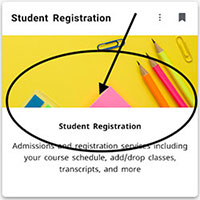 These cards are similar to the tiles or 鈥渁pps鈥� in the old MyPortal design
- The links on each card will open the same pages and tools that you previously accessed through the apps.
- Click a link on the card to open an online tool or a page with more information. NOTE: If you you don't see a link, click anywhere around the center of the card 鈥� see the arrow on the sample Student Registration card at right.
Want to Find or Add a Class?Search for the Student Registration card and click to open a familiar menu of activities: You can get your registration date, search the class schedule, or register for classes. |
How to Search for Cards/Tiles
If you don鈥檛 see the card you want, you can click the symbol with three horizontal lines in the upper left corner of your screen, just to the left of the Foothill logl. (This three-line symbol is sometimes called a 鈥渉amburger鈥�.)
- This will open a menu of shortcuts, including a 鈥凄颈蝉肠辞惫别谤鈥� link that opens a page containing all the cards in MyPortal.
- To search for a particular card, use the 鈥淔ind cards鈥� search tool at the top of the Discover page.
- Just type in the name of any card or program that you might use in MyPortal
- You can also click on the buttons at the top for a list of cards in various categories, such as Student Services or Campus Services.
Customize Your Homepage
You can customize your home page by adding any card that you want to keep handy.
Set any card to appear on your MyPortal homepage by clicking the little bookmark icon in the upper right corner of the card.
Hollow Icon: Not on Homepage
 If the card isn鈥檛 already on your homepage, the icon will be hollow.
Solid Icon: Added to Homepage
 When you click the icon, it will turn solid and the card will appear on your homepage.
You can also rearrange the cards on your homepage:
- Place your cursor at the top of the card (next to the card name)
- Click and hold to drag it to where you want that card to appear
That鈥檚 It!
Once you click on a card, everything else should work about the same way as it has before.
You can find more user instructions on this .
Important MyPortal Information
|

Contact UsAdmissions and RecordsStudent Services Building 8100,Room 8101 650.949.7325 admissions@foothill.edu A & R Help Form |
